Configuring Units
Click Units to open the Units Configuration dialog box and create sets of columns that use defined unit types. Each set of columns you create can be displayed in different units on given GCM Nomination Grid screens. Any number of sets can be created, and a current set can be changed at runtime using the ApplyUnitsSet script function. The function’s single parameter is the set number indicated in the set name.
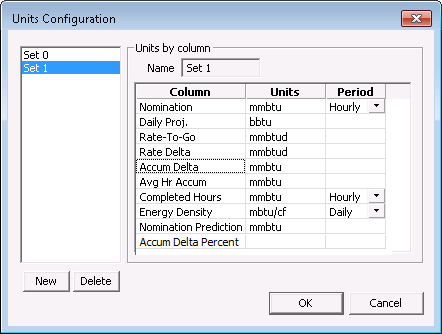
|
| Sample Units Configuration Dialog Box for Commodity Type of Gas |
Commodity Type Conversions
All calculated output points represented in a column must be of the same unit type. If a value cannot be converted, an error generates when the grid is rendered. The exception to this case is when volume is converted for the two commodity types:
- Gas — when converting volume to energy using the Energy Density column
- Liquids — when converting volume to mass using the Gravity column
If the Energy Density or Gravity column is hidden, or the values are empty, all the energy values are blank.
Volume periods display either an H or D beside their unit type in the column header of the GCM nomination grid screen to indicate that they are hourly or daily values.
When the commodity type in the pipeline is Gas, the units can be converted between Volume and Energy using Energy Density as an input: Volume * Energy Density gives Energy. When the commodity type in the pipeline is Liquids, the units can be converted between Volume and Mass using Gravity as an input: Volume * Gravity gives Mass.
You can assign units for the output points from the unit categories listed in the following table.
| Gas | Liquids |
|---|---|
|
Volume Flow Rate Energy Energy Rate |
Volume Flow Rate Mass Flow Mass |
To Configure Column Units
- Open the Property Sheet for your CygNet GCM Nomination Grid control and select the ActiveX page.
- Double-click (OCXProperties).
- Click Columns and then click Units.
- Click New to add a new unit set. Your predefined column names are already populated in the Units by column pane.
- Assign a unit type to each column by typing a valid unit type in the Units field.
- Select Hourly or Daily from the Period drop-down menus displayed. Doing so determines the period for which data displays for a given set of columns. These columns display either an H or D beside their unit type in the column header of the GCM screen to indicate that they are hourly or daily volumes.
- Repeat as desired for multiple sets of columns using different unit configurations.


